Text Tutorial: 6 Steps to Change Your Chrome New Tab Page to the One Claude Writes for You Every Day图文教程:六步把 Chrome 新标签页换成 Claude 每天为你写的一页
Run your AI Homepage from scratch with this tutorial: install dependencies and build extensions, load Chrome in developer mode, complete the first build to see your homepage, and finally teach you how to change the layout with a sentence, block sites you don't want to be read, and turn on automatic rebuilding. You'll need to bring your own Anthropic API Key along the way, at no additional cost.
这篇教程带你从零把 AI Homepage 跑起来:先装依赖并构建扩展,再在开发者模式下加载进 Chrome,然后完成第一次构建看到自己的首页,最后教你怎么用一句话改版式、把不想被读的站点屏蔽掉,以及打开自动重建。全程需要自备一个 Anthropic API Key,除此之外没有任何费用。
Step 1: Prepare your prerequisites第一步:备好前置条件
Confirm that the browser is Chrome or another Chromium core browser (Edge, Brave, etc.).
Install Node.js 20 or later, execute node -v in the terminal to confirm the version number.
Go to the Anthropic console to apply for an API Key, and copy it to the notepad for backup.
Unzip the ai-newtab-main.zip downloaded from the "AI Plugin" section of this site and enter the extracted repository root directory.
确认浏览器是 Chrome 或其他 Chromium 内核浏览器(Edge、Brave 等都可以)。
安装 Node.js 20 或更高版本,终端里执行 node -v 确认版本号。
去 Anthropic 控制台申请一个 API Key,先复制到记事本里备用。
把本站「AI插件」栏目下载的 ai-newtab-main.zip 解压,进入解压出来的仓库根目录。
Step 2: Install dependencies and build extensions第二步:安装依赖并构建扩展
Execute the installation command in the repository root directory: npx pnpm @ 10.11.1 install. The first time will be to download Dependency, wait patiently for it to finish running.
Next execute the build: npx pnpm @ 10.11.1 build. If you already have pnpm installed on your machine, use pnpm install & & pnpm build directly as well.
After the build is successful, the product is located in the apps/extension/.output/chrome-mv3 directory - remember this path and use it next.
If the build fails, first confirm that the Node version is not less than 20; low version is the most common reason for the failure of this type of Monorepo build.
在仓库根目录执行安装命令:npx pnpm@10.11.1 install。第一次会下载依赖,耐心等它跑完。
接着执行构建:npx pnpm@10.11.1 build。如果你本机已经装过 pnpm,直接用 pnpm install && pnpm build 也一样。
构建成功后,产物位于 apps/extension/.output/chrome-mv3 目录——记住这个路径,下一步要用。
如果构建报错,先确认 Node 版本不低于 20;版本过低是这一类 Monorepo 构建最常见的失败原因。
Step 3: Load the extension into Chrome第三步:把扩展加载进 Chrome
Enter chrome://extensions in the address bar to enter the extension management page.
Open the Developer Mode switch in the top right corner and three new buttons will appear on the page.
Click "Load Unzipped Extensions" and select the chrome-mv3 folder in the second step in the directory selection box that pops up.
Once loaded, Chrome may ask if you want to keep the modified new tab - be sure to select “Keep”, otherwise opening the new tab will return you to the default page.
地址栏输入 chrome://extensions 回车,进入扩展管理页。
打开右上角的「开发者模式」开关,页面上会出现三个新按钮。
点「加载已解压的扩展程序」,在弹出的目录选择框里选中第二步那个 chrome-mv3 文件夹。
加载完成后,Chrome 可能会询问是否保留被修改的新标签页——一定要选「保留」,否则打开新标签还是会回到默认页面。
Step 4: Run out of your first front page第四步:跑出你的第一张首页
Create a new tab, and you will see the AI Homepage interface.
Paste your Anthropic API Key in the input box and click Build today's homepage.
The progress view walks through five stages: preparing the agent, reading your browsing history, opening the page in your browser, analyzing the content, and writing the homepage. The first build takes a few minutes.
This process runs in the background worker, so you can simply close the tab to do something else, and the progress will continue when you open a new tab.
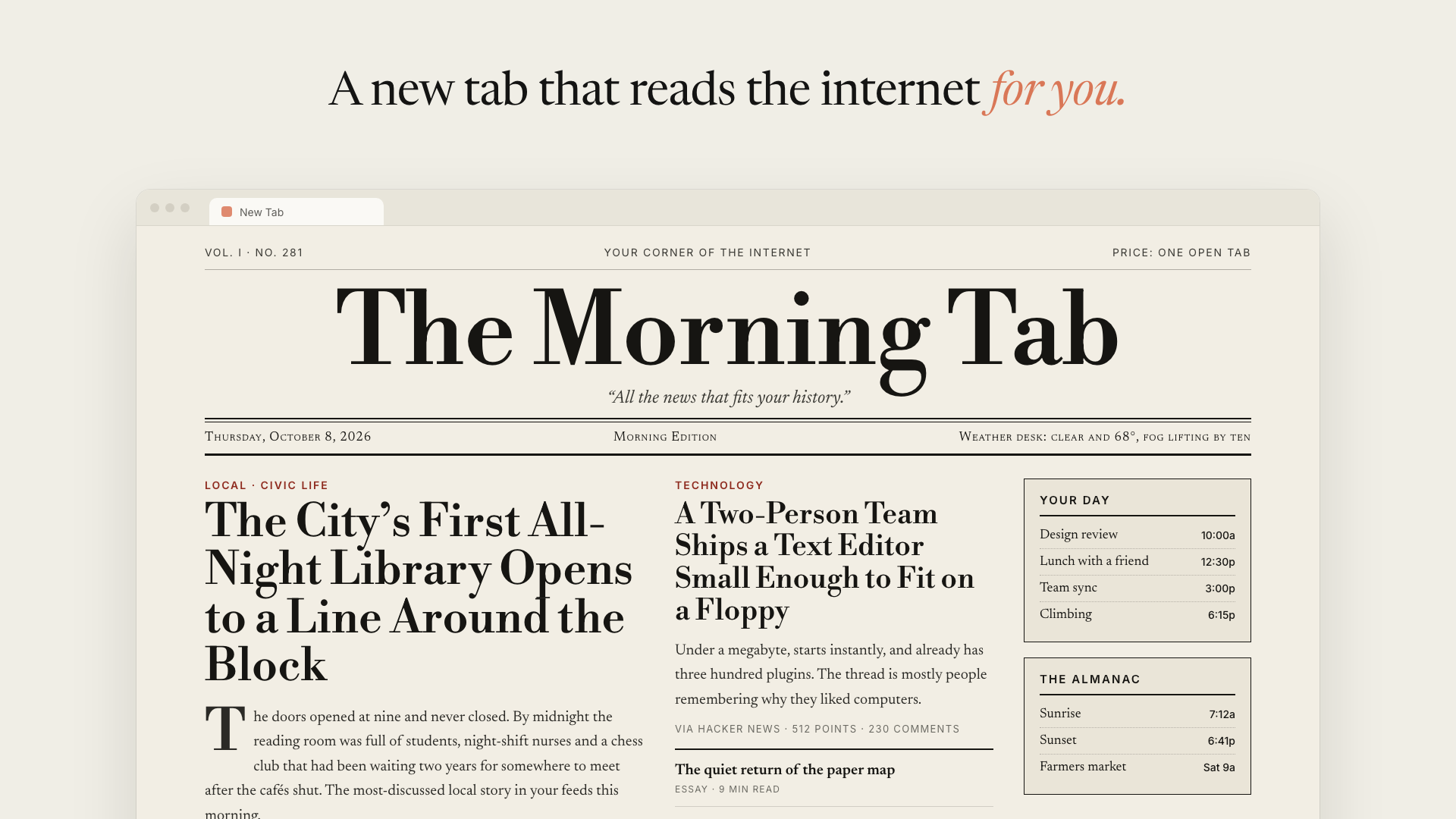
After the build is completed, go back to the new tab, the first version you see is the default style of the agent, and the next step is to change it.
新建一个标签页,此时看到的已经是 AI Homepage 的界面了。
在输入框里粘贴你的 Anthropic API Key,然后点「Build today's homepage」。
进度视图会逐步走完五个阶段:准备智能体、读取你的浏览历史、在你的浏览器里打开页面、分析内容、写出首页。第一次构建需要几分钟。
这个过程跑在后台 worker 里,所以你可以直接关掉标签页去做别的事;再打开新标签时进度会继续显示。
构建完成后回到新标签页,你看到的第一个版本是智能体的默认样式,下一步就来改它。
Step 5: Change the layout with one sentence and block sites that you don't want to be read第五步:用一句话改版式,再屏蔽不想被读的站点
Go to⚙️ Settings in the top right corner of the new tab. The top free text box is the core: what you write, the homepage becomes, and takes precedence over the agent's default behavior.
If you want to try different styles, you can copy these sentences directly: "A morning newspaper, serif font, large character header, a headline plus a column of newsletters", "Quiet single column reading list, no pictures, five things with a row of reasons", "Dense dashboard: GitHub's PR and issue are first, then Hacker News", "Green black background terminal style, monospace font, like BBS in the 1980s".
Regular directives are best used, such as “Skip sports and politics, always show the weather and my next three schedules” - a fixed requirement that is enforced every day.
Scroll down to the block list and fill in one hostname per line, the agent will never read these sites, the subdomain is automatically included, and the wildcard * .example.com is also supported. By default, common web mailboxes, login pages, and document sites are blocked; localhost, private IP, and other local addresses are forced to be blocked.
After changing the point "Save & rebuild", it will save the settings and rebuild it once as per the new requirements.
在新标签页点右上角的「⚙️ Settings」进入设置。最上面那个自由文本框是核心:你写什么,首页就变成什么,而且优先于智能体的默认行为。
想试不同风格可以直接抄这几句:「一份晨报,衬线字体、大字报头、一条头条加一栏简讯」「安静的单栏阅读清单,不要图,五件事各配一行理由」「密集仪表盘:GitHub 的 PR 和 issue 放最前,然后 Hacker News」「绿字黑底终端风,等宽字体,像 1980 年代的 BBS」。
规则型指令最好用,例如「跳过体育和政治,永远显示天气和我接下来的三个日程」——这类固定要求每天都会被执行。
往下滚到屏蔽列表,一行填一个主机名,智能体就永远不会读取这些站点,子域自动包含,也支持 *.example.com 这种通配写法。默认已经屏蔽了常见的网页邮箱、登录页和文档站点;localhost、私有 IP 这类本地地址是强制屏蔽的。
改完点「Save & rebuild」,它会存下设置并立刻按新要求重建一次。
Step 6: Select the model, open automatic reconstruction, close第六步:选模型、开自动重建、收尾
In the same settings page, you can switch the model that writes the homepage: Claude Sonnet 5.5 is the default value, the best balance between quality and cost; Haiku 5.5 is the fastest and cheapest; Opus 5.5 is the most detailed and expensive. The toggle takes effect from the next build.
Turn on the automatic reconstruction, which can be selected once every 6/12/24/48 hours. Note that it will only start running automatically after you have manually completed the first build.
About expenses: Each build is a real model call, billed on your own Anthropic Key, and the cost depends on the model you choose and the length of content you read in. To see the overhead start with Haiku or a longer reconstruction interval.
About privacy: A summary of your browsing history and HTML for up to 8 pages are sent to the Anthropic API when you build, and these pages are opened in your logged-in browser and may contain private content; sessions and uploaded pages are deleted after each build. The API Key is stored locally in the extension and can be read by anyone with access to this browser profile, so just use it as your own tool and don't share the entire browser profile.
Last reminder: This is your own new tab after all. Put the blocked list in place first and then hang it for a long time, which is much safer than cleaning up afterwards.
同一个设置页里可以切换写首页的模型:Claude Sonnet 5.5 是默认值,质量与成本最平衡;Haiku 5.5 最快最便宜;Opus 5.5 最细致也最贵。切换后从下一次构建开始生效。
把自动重建打开,可以选 6 / 12 / 24 / 48 小时一次。注意它只在你手动完成过第一次构建之后才会开始自动跑。
关于费用:每一次构建都是一次真实的模型调用,账单记在你自己的 Anthropic Key 上,成本取决于你选的模型和读进去的内容长度。想看住开销就先从 Haiku 或较长的重建间隔开始。
关于隐私:构建时你的浏览历史摘要和最多 8 个页面的 HTML 会被发送给 Anthropic API,而这些页面是在你已登录的浏览器里打开的,可能包含私密内容;每次构建结束后会话和上传页面会被删除。API Key 存在扩展的本地存储里,能访问这个浏览器配置文件的人都能读到,所以把它当自用工具就好,不要分享整份浏览器配置文件。
最后提醒一句:这毕竟是你自己的新标签页,先把屏蔽列表配好再长期挂着跑,比事后清理省心得多。
Use reminder使用提醒
The accompanying resource for this tutorial is the AI Homepage (ai-newtab) source code package, see the "AI Plugins" section of this site, taken from the GitHub open source repository ThariqS/ai-newtab (mit license). The tutorial content is compiled from the project public README and ARCHITECTURE.md. The specific commands and interfaces may be adjusted as the version is updated. Please refer to the latest instructions of the repository. Before using, please confirm that you accept the "Browsing history summary and up to 8 page content will be sent to Anthropic API" data flow, and secure your API Key.
本教程配套资源为 AI Homepage(ai-newtab)源码包,见本站「AI插件」栏目,取自 GitHub 开源仓库 ThariqS/ai-newtab(MIT 许可)。教程内容整理自项目公开 README 与 ARCHITECTURE.md,具体命令与界面可能随版本更新而调整,请以仓库最新说明为准。使用前请确认你接受「浏览历史摘要与最多 8 个页面内容会被发送给 Anthropic API」这一数据流向,并妥善保管你的 API Key。
本篇为图文教程,直接按步骤操作即可,无需下载文件。
阅读与点赞数据保存在你的浏览器本地,欢迎留下你的想法。
 今日正能量学一点,用一点;今天种下的种子,会长成明天的能力。去免费下载专区 →广告
评论 文明发言,让讨论更有价值