Text tutorial: 3 steps to equip Claude with Desktop Commander and let him run the command to change the file himself图文教程:三步给 Claude 装上 Desktop Commander,让它自己跑命令改文件
Then do it again: get the installation package and → write the MCP server into the configuration→. Verify the terminal execution, file search, and diff code change with the real task, and complete the whole process in ten minutes.
跟着做一遍:获取安装包 → 把 MCP 服务器写进配置 → 用真实任务验证终端执行、文件搜索、diff 改码三大能力,全程十分钟内完成。
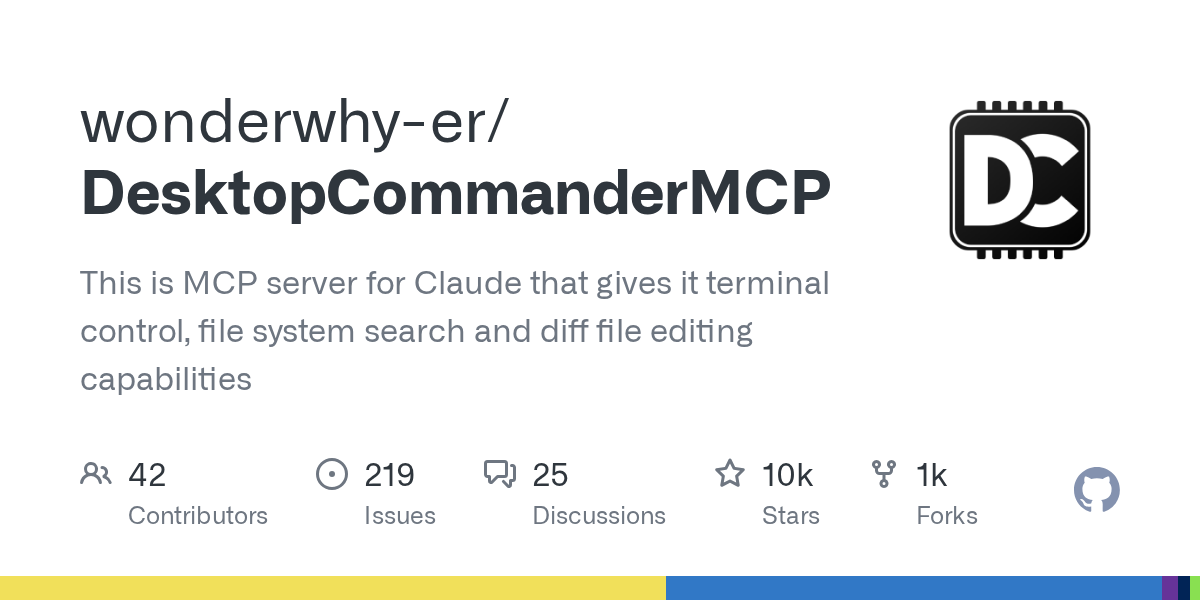
Step 1: Get the installation package第一步:拿到安装包
The unblocked network executes npx @ wonderwhy-er/desktop-commander @ latest directly in the terminal, and npx will automatically download and run.
For users with network inconvenience, download the official npm installation package (tgz format 1.70 MB) accompanying this article, and remember the local path after decompression.
Verification: The command line executes npx @ wonderwhy-er/desktop-commander --help, and you can see the help information that the package is OK.
网络畅通的直接在终端执行 npx @wonderwhy-er/desktop-commander@latest,npx 会自动下载运行。
网络不便的用户,下载本文配套的官方 npm 安装包(tgz 格式 1.70MB),记住解压后的本地路径。
验证:命令行执行 npx @wonderwhy-er/desktop-commander --help,能看到帮助信息说明包没问题。
Step 2: Write to MCP Configuration第二步:写进 MCP 配置
Claude Desktop: Open the developer configuration in the settings, edit claude_desktop_config.json, add the desktop-commander item in mcpServers, fill in npx with command, and fill in "@ wonderwhy-er/desktop-commander" with args (change the offline package to the local path).
Claude Code: Execute claude mcp add desktop-commander --npx @ wonderwhy-er/desktop-commander one command to complete the registration.
After saving and restarting the client, ask "What desktop-commander tools do you have now" in the conversation. You can list the terminals and file tools to access successfully.
Claude Desktop:打开设置里的开发者配置,编辑 claude_desktop_config.json,在 mcpServers 里新增 desktop-commander 一项,command 填 npx,args 填 "@wonderwhy-er/desktop-commander"(离线包改为本地路径)。
Claude Code:执行 claude mcp add desktop-commander -- npx @wonderwhy-er/desktop-commander 一条命令完成注册。
保存后重启客户端,在对话里问「你现在有哪些 desktop-commander 工具」,能列出终端与文件工具即接入成功。
Step 3: Acceptance with a real task第三步:用真实任务验收
Terminal capability: Let it "run npm run build in the project directory, post the error report and explain", observe its own execution command and read the output.
Search ability: Let it “find all files with dead API addresses in the project”, and it will use recursive search to give the file list and line number directly.
Code modification ability: Let it "fix the function that reported the error in diff mode". The modification given by it only moves the target line, does not rewrite the entire file, and allows it to rerun the verification after modification.
终端能力:让它「在项目目录跑 npm run build,把报错贴出来并解释」,观察它自己执行命令并读取输出。
搜索能力:让它「找出项目里所有写死 API 地址的文件」,它会用递归搜索直接给出文件清单和行号。
改码能力:让它「把报错的函数按 diff 方式修复」,它给出的修改只动目标行,不会整文件重写,改完可让它重跑验证。
Security & Advancement安全与进阶
This plugin is very permissive (can execute arbitrary commands). It is recommended to enable it only in trusted projects. Important directories should be submitted to git before letting it work.
Long tasks use its process management features: let it start background processes, read output by line, instead of blocking waiting all the time.
I think it is easy to use. You can go to the GitHub repository to order a star. The author updates very often. Before locking the version number, look at changelog.
这个插件权限很大(能执行任意命令),建议只在可信项目里启用,重要目录先提交 git 再放手让它干活。
长任务用它的进程管理功能:让它启动后台进程、按行读输出,而不是一直阻塞等待。
觉得好用可以去 GitHub 仓库点个星,作者更新很勤,锁定版本号前先看 changelog。
Use reminder使用提醒
This article is compiled from public sources and ships with the matching resource. Product features and pricing are subject to the official page. Resources are for learning and exchange only — please respect the original license.
本文整理自公开资料并附上配套资源;涉及产品的功能与价格以官方页面为准。资源仅供学习交流,请遵循来源许可。
想马上用起来?去「AI工具」栏挑一个直接下载,或在「AI教程」里跟着图文步骤做一遍。
去 AI工具 → 看 AI教程 →阅读与点赞数据保存在你的浏览器本地,欢迎留下你的想法。
 今日正能量学一点,用一点;今天种下的种子,会长成明天的能力。去免费下载专区 →广告
评论 文明发言,让讨论更有价值