Tutorial: Four Steps for Claude to Direct ComfyUI Drawing via MCP教程:四步让 Claude 通过 MCP 直接指挥 ComfyUI 出图
From preparing the ComfyUI, deploying the Pixelle MCP, registering the workflow as an MCP tool, and plotting a sentence in Claude, run in four steps. Prerequisite: The machine is equipped with ComfyUI and can draw normally.
从准备 ComfyUI、部署 Pixelle MCP,到把工作流注册成 MCP 工具、在 Claude 里一句话出图,四步跑通。前提:本机已装 ComfyUI 并能正常出图。
Step 1: Confirm ComfyUI is available and prepare the workflow第一步:确认 ComfyUI 可用并准备工作流
Open the native ComfyUI (default http://127.0.0.1: 8188) and confirm that the default workflow can produce a diagram - this is the premise of everything later.
Save the workflow you want to expose to the agent as JSON in ComfyUI (just export it in the menu), such as Flux workflow of Vincent diagram. The official workflows/directory also comes with multiple off-the-shelf workflows that can be imported directly.
The model recommends verifying the link with small parameters (512 × 512, low steps) first, and then uploading the large model after running through to avoid card memory at the beginning.
打开本机 ComfyUI(默认 http://127.0.0.1:8188),确认默认工作流能正常出一张图——这是后面一切的前提。
在 ComfyUI 里把你想暴露给智能体的工作流保存为 JSON(菜单里导出即可),比如文生图的 Flux 工作流。官方 workflows/ 目录也带了多条现成工作流可直接导入。
模型建议先用小参数(512×512、低步数)验证链路,跑通后再上大模型,避免一开始就卡显存。
Step 2: Deploy the Pixelle MCP第二步:部署 Pixelle MCP
Download our site pixelle-mcp-main.zip (5.82 MB) and extract it. After entering the directory, press README_CN.md to install the dependency (uv sync or pip install -e. is recommended).
Copy the .env.example to .env, fill in the ComfyUI access address and output directory, etc.; the first start will automatically scan the available workflows.
After starting the service, the browser opens the WebUI to confirm that the home page is normal, and the SSE endpoint defaults to http://localhost: 8002/sse.
下载本站 pixelle-mcp-main.zip(5.82MB)并解压,进入目录后按 README_CN.md 安装依赖(推荐 uv sync 或 pip install -e .)。
复制 .env.example 为 .env,填入 ComfyUI 的访问地址与输出目录等配置;首次启动会自动扫描可用工作流。
启动服务后浏览器打开 WebUI 确认首页正常,SSE 端点默认在 http://localhost:8002/sse。
Step 3: Register the workflow as an MCP tool第三步:把工作流注册成 MCP 工具
Put your workflow JSON in the WebUI or workflows directory, and Pixelle will parse the nodes and derive parameters: prompts, width and height, steps, etc. will automatically become tool input parameters.
Connect the SSE endpoint with the MCP Inspector (npx @ modelcontextprotocol/inspector) Validation: List Tools should see the tool named after the workflow, with the type and description of each parameter, and the point Run Tool can be directly plotted.
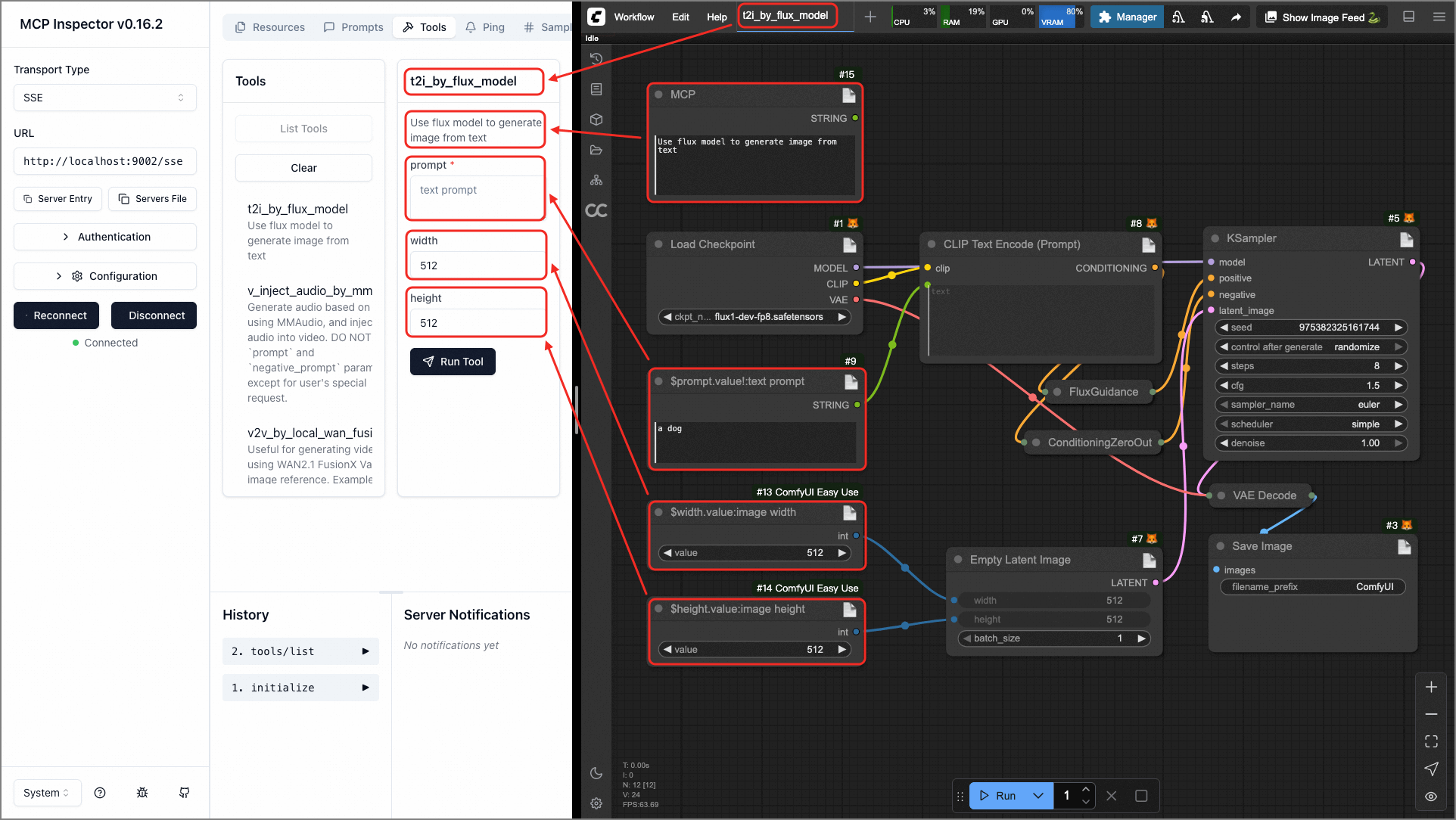
The official screenshot shows this step: the left Inspector lists the t2i_by_flux_model tool, the right is its corresponding ComfyUI workflow, and the parameters have been automatically mapped.
在 WebUI 或 workflows 目录放入你的工作流 JSON,Pixelle 会解析节点并推导参数:提示词、宽高、步数等自动成为工具入参。
用 MCP Inspector(npx @modelcontextprotocol/inspector)连接 SSE 端点验证:List Tools 应看到以工作流命名的工具,每个参数带类型和说明,点 Run Tool 能直接出图。
官方截图展示的正是这一步:左侧 Inspector 列出 t2i_by_flux_model 工具,右侧是它对应的 ComfyUI 工作流,参数已自动映射。
Step 4: Connect to Claude, plot in one sentence第四步:接入 Claude,一句话出图
Execute claude mcp add -s user pixelle --transport sse http://localhost: 8002/sse in Claude Code. After restarting the session, Claude can see all the tools of pixelle.
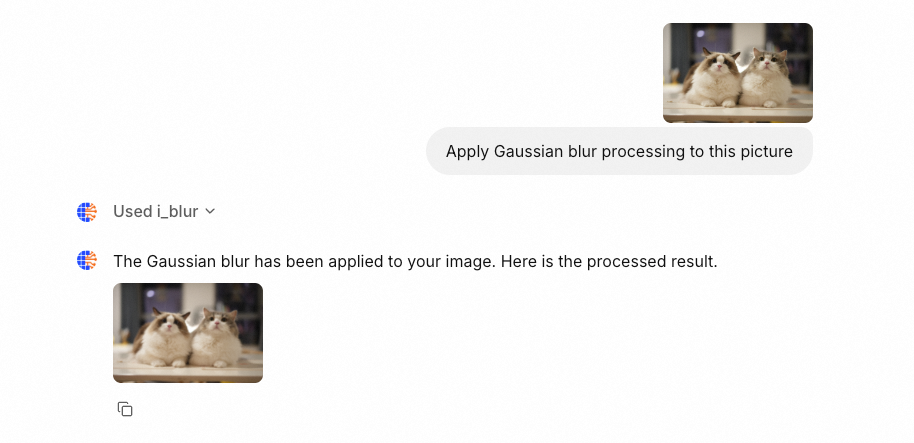
Try saying "Draw a 1024 wide cyberpunk cat with a flux workflow" - Claude will call the corresponding tool, pass the parameters, and retrieve the generated graph. Tusheng videos, TTS and other workflows are the same, you can adjust what you register.
It is recommended to centralize the commonly used workflows in a directory and write the names. The agent picks the tools by name, which is more accurate; confirm that the ComfyUI queue is not piled up in the event of a timeout.
在 Claude Code 里执行 claude mcp add -s user pixelle --transport sse http://localhost:8002/sse,重启会话后 Claude 即可看到 pixelle 的全部工具。
试着说"用 flux 工作流画一张 1024 宽的赛博朋克猫"——Claude 会调用对应工具、传参数、取回生成图。图生视频、TTS 等工作流同理,注册了什么就能调什么。
日常使用建议把常用工作流集中放在一个目录并写好命名,智能体按名字挑工具更准;遇到超时先确认 ComfyUI 队列没有堆积。
Use reminder使用提醒
The accompanying resource for this tutorial is the Pixelle MCP source code package (see the "AI Tools" section of this site). When it comes to local model deployment, please pay attention to the video memory and disk occupation, and the command shall be subject to the official README_CN.md.
本教程配套资源为 Pixelle MCP 源码包(见本站「AI工具」栏目)。涉及本地模型部署时请注意显存与磁盘占用,命令以官方 README_CN.md 为准。
本篇为图文教程,直接按步骤操作即可,无需下载文件。
阅读与点赞数据保存在你的浏览器本地,欢迎留下你的想法。
 今日正能量学一点,用一点;今天种下的种子,会长成明天的能力。去免费下载专区 →广告
评论 文明发言,让讨论更有价值