Step-by-step: use PPT Master to get Claude Code to build a presentation-ready native PPT in ten minutes图文教程:用 PPT Master 让 Claude Code 十分钟做出一份能直接汇报的原生 PPT
Follow along: install the skill pack, describe your topic and audience, let the agent draft an outline and produce the .pptx, then fine-tune and deliver. No coding and no design background required.
跟着做一遍:装好技能包 → 说清主题与受众 → 让它先出大纲再产出 .pptx → 打开文件微调并交付。全程不需要写代码,也不需要设计基础。
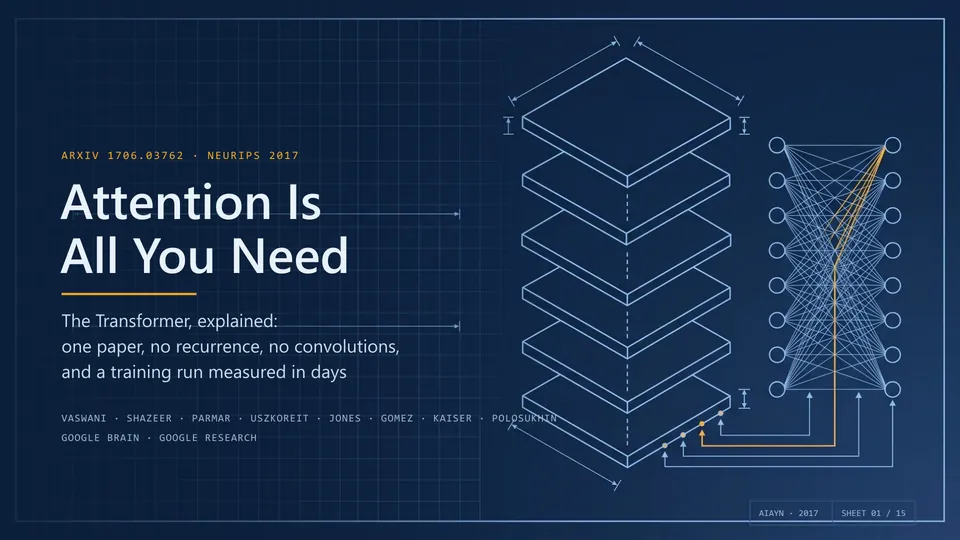
Step 1: Install the Skill Pack第一步:安装技能包
Download the ppt-master-skill v6.7.0 full pack (about 21.5MB), unpack it, and locate the skill folder.
Move the folder into Claude Code's skills directory (usually ~/.claude/skills/), or simply say "Install ppt-master from <unpacked path>" and let it finish the setup.
Restart the session and type / to list skills — if ppt-master appears, you are done.
下载本文提供的 ppt-master-skill v6.7.0 完整包(约 21.5MB)并解压,得到技能目录。
把技能目录放进 Claude Code 的技能目录(通常是 ~/.claude/skills/),或在会话里说「Install ppt-master from <解压路径>」让它自己完成。
重启会话后输入 / 查看技能列表,ppt-master 出现即安装成功。
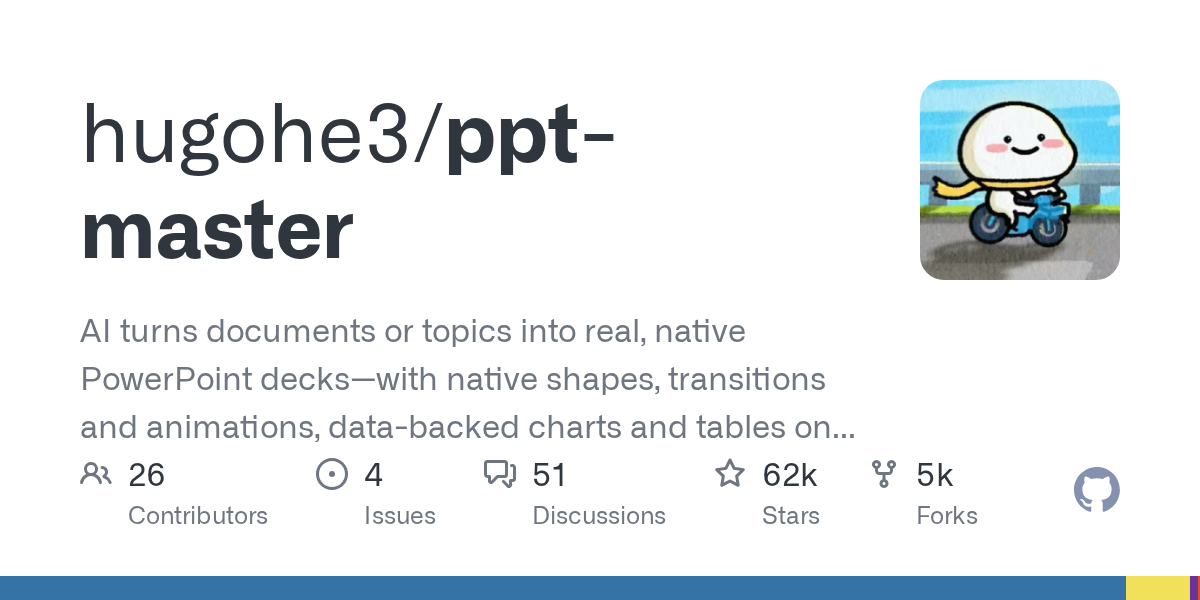
Step 2: brief it properly第二步:把需求说清楚
State the topic, audience, page count and occasion, e.g. "a 10-page quarterly AI progress report for company leadership; restrained tone, data first".
Attach any material you have — Word docs, meeting notes, data tables; it will distribute the content across slides.
Ask for a "native pptx" explicitly so it uses PPT Master's native rendering instead of a screenshot-based fallback.
给出主题、受众、页数和场合,例如:「给公司管理层做一份 10 页的季度 AI 进展汇报,语气克制、数据优先」。
有素材就一起给:Word 文档、会议纪要、数据表格都能直接丢给它,它会把内容分配到各页。
强调「原生 pptx」,确保它走 PPT Master 的原生渲染而不是网页截图方案。
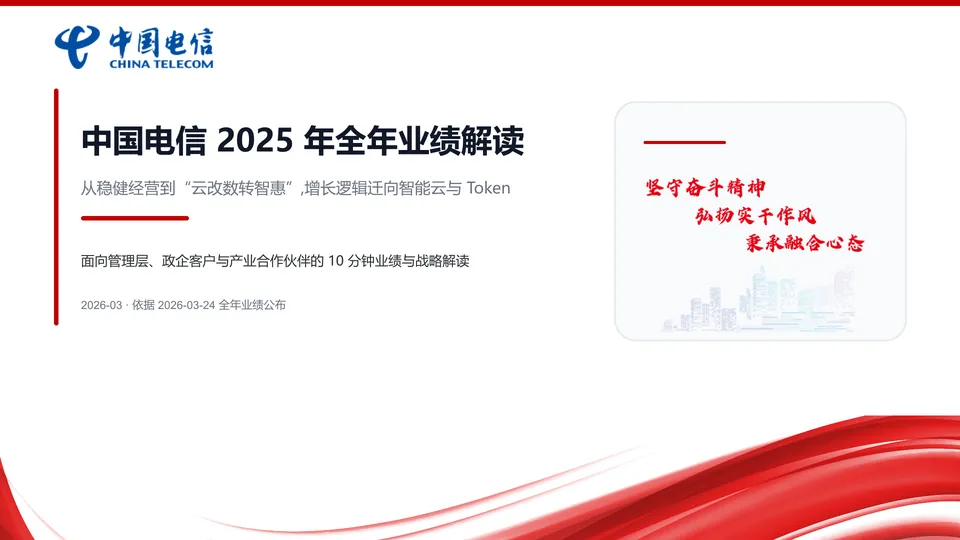
Step 3: outline first, deck second第三步:先大纲,后成稿
Have it output per-slide titles and bullet points first; confirm the structure before rendering to keep rework cheap.
For chart slides, provide the data too (CSV or a pasted table) so it builds native charts rather than pasted images.
When rendering finishes, open the file in PowerPoint or WPS and check that every element is selectable and editable.
让它先输出每页的标题与要点,确认结构没问题再让它渲染成文件,返工成本最低。
需要图表的页面把数据一并给出(CSV 或直接贴表格),它会生成原生图表而不是贴图。
渲染完成后用 PowerPoint 或 WPS 打开检查:所有元素都应可选中、可编辑。

Step 4: polish and deliver第四步:微调与交付
Adjust fonts, alignment and brand colors in PowerPoint; for structural changes, go back to the agent: "make slide 4 a two-column comparison".
Ask for narration if needed, keep transitions and animations on export, and you have a deck ready to present.
在 PowerPoint 里调整字体、对齐与品牌色;结构性的改动可以直接回给智能体:「把第 4 页改成两栏对比布局」。
需要旁白就让它补配音,导出时保留动画与切换,交出去就是一份能直接讲的完整演示。
Use reminder使用提醒
This article is compiled from public sources and ships with the matching resource. Product features and pricing are subject to the official page. Resources are for learning and exchange only — please respect the original license.
本文整理自公开资料并附上配套资源;涉及产品的功能与价格以官方页面为准。资源仅供学习交流,请遵循来源许可。
想马上用起来?去「AI工具」栏挑一个直接下载,或在「AI教程」里跟着图文步骤做一遍。
去 AI工具 → 看 AI教程 →阅读与点赞数据保存在你的浏览器本地,欢迎留下你的想法。
 今日正能量学一点,用一点;今天种下的种子,会长成明天的能力。去免费下载专区 →广告
评论 文明发言,让讨论更有价值