Image and text tutorial: 5 minutes to pack the tree and cut the webpage and video into Obsidian (including AI question configuration)图文教程:5 分钟装好乔木剪藏,把网页和视频剪进 Obsidian(含 AI 提问配置)
From downloading the installation package to cutting the first article, you only need to press the keyboard three times in a row. This tutorial walks through it according to the real interface screenshots: installing plug-ins, matching AI, watching videos for bilingual notes, cutting to Obsidian with one click, and finally giving a shortcut key cheat sheet. By doing this, you can turn "favorite gray" into a searchable note library.
从下载安装包到剪下第一篇文章,全程只需要连着按三下键盘。这篇教程按真实界面截图走一遍:装插件、配 AI、看视频做双语笔记、一键剪藏到 Obsidian,最后给出快捷键速查表,照着做就能把「收藏夹吃灰」变成可检索的笔记库。
Step 1: Fit the expansion (about 1 minute)第一步:装好扩展(约 1 分钟)
Download the tree clipping v1.14.4 Chrome expansion package (about 10.9 MB) from the "AI Plugin" section of this site, and extract it to a directory that will not be deleted casually, such as D:\tools\qiaomu-clipper.
Open Chrome and enter chrome://extensions in the address bar to enter; open the Developer Mode switch in the top right corner.
Click "Load Unzipped Extensions" in the upper left corner, select the folder that has just been extracted, and "Tree Cutting" appears in the extension list to install successfully.
It is recommended that the pin next to the point extension icon fixes it to the toolbar, and it will be much easier to see the settings later.
Note for Windows users: After unzipping, if there is still a folder with the same name inside, select the layer that really contains manifest.json.
从本站「AI插件」栏目下载乔木剪藏 v1.14.4 Chrome 扩展包(约 10.9 MB),解压到一个不会随手删掉的目录,比如 D:\tools\qiaomu-clipper。
打开 Chrome,地址栏输入 chrome://extensions 回车;打开右上角的「开发者模式」开关。
点左上角「加载已解压的扩展程序」,选中刚才解压出来的文件夹,扩展列表里出现「乔木剪藏」即安装成功。
建议点扩展图标旁的图钉把它固定到工具栏,后续要看设置会方便很多。
Windows 用户注意:解压后如果里面还套着一层同名文件夹,要选到真正包含 manifest.json 的那一层。
Step 2: Open an article and press a three times第二步:打开一篇文章,按三次 a 试试
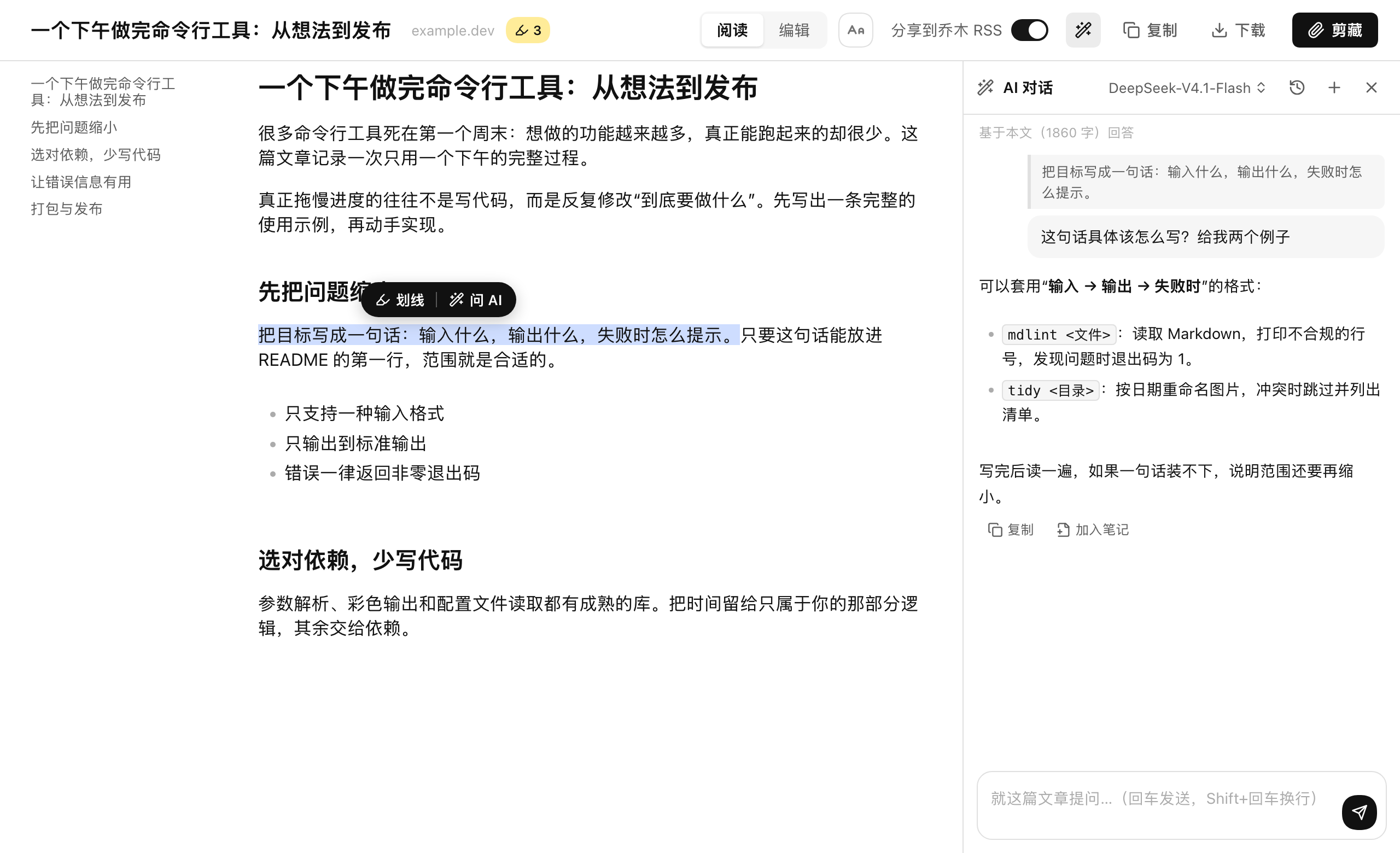
Open any information page or official account article page (do not click on the input box first), and quickly double-click aaa on the page.
The page will switch to a clean reading page: the body is extracted, the ads and sidebars disappear, the underline can be highlighted, and there is an AI question entry in the lower right corner.
If you select any text, a question box will appear, around which you will directly ask "What is this passage saying?" and "Explain this term in one sentence."
To return to the original page, press Esc or click the close button in the top right corner of the reading page.
随便打开一个资讯页或公众号文章页(先不要点进输入框),在页面上快速连按 aaa。
页面会切换成干净阅读页:正文抽出来、广告和侧边栏消失,划线可以高亮,右下角有 AI 提问入口。
选中任意一段文字,会浮出提问框,围绕这段话直接问「这段在说什么」「用一句话解释这个术语」。
想回到原始网页,按 Esc 或点阅读页右上角的关闭按钮即可。
Step 3: Configure AI interpretation (optional)第三步:配置 AI 解读(可选)
Click the extension icon to enter the settings and find "AI interpretation": fill in your own model service provider address and API Key (OpenAI, DeepSeek, Gemini and other compatible interfaces can be used).
Write down the fixed answer requirements in the "Global Instruction", such as "Answer in Simplified Chinese, give a conclusion and then give a reason, not exceeding 150 words", and then automatically bring it with you every time you ask a question.
Save common questions as quick prompts, such as "Translate into Chinese", "List three points", "Give a counter example", and insert them with one click when asking questions.
You can easily adjust the "font/font size" to make yourself look comfortable in the typography; not configuring AI will not affect reading and cutting at all, but it will lack the ability to answer questions and translate.
点扩展图标进入设置,找到「AI 解读」:填入你自己的模型服务商地址与 API Key(OpenAI、DeepSeek、Gemini 等兼容接口都行)。
在「全局指令」里写下固定的回答要求,例如「用简体中文回答,先给结论再给理由,不超过 150 字」,之后每次提问都自动带上。
把常用的问法存成快捷提示词,例如「翻译成中文」「列出三个要点」「举个反例」,提问时一键插入。
顺手在「字体 / 字号」里调成自己看着舒服的排版;不配置 AI 也完全不影响阅读和剪藏,只是少了问答与翻译能力。
Step 4: Take bilingual notes on the video page第四步:视频页做双语学习笔记
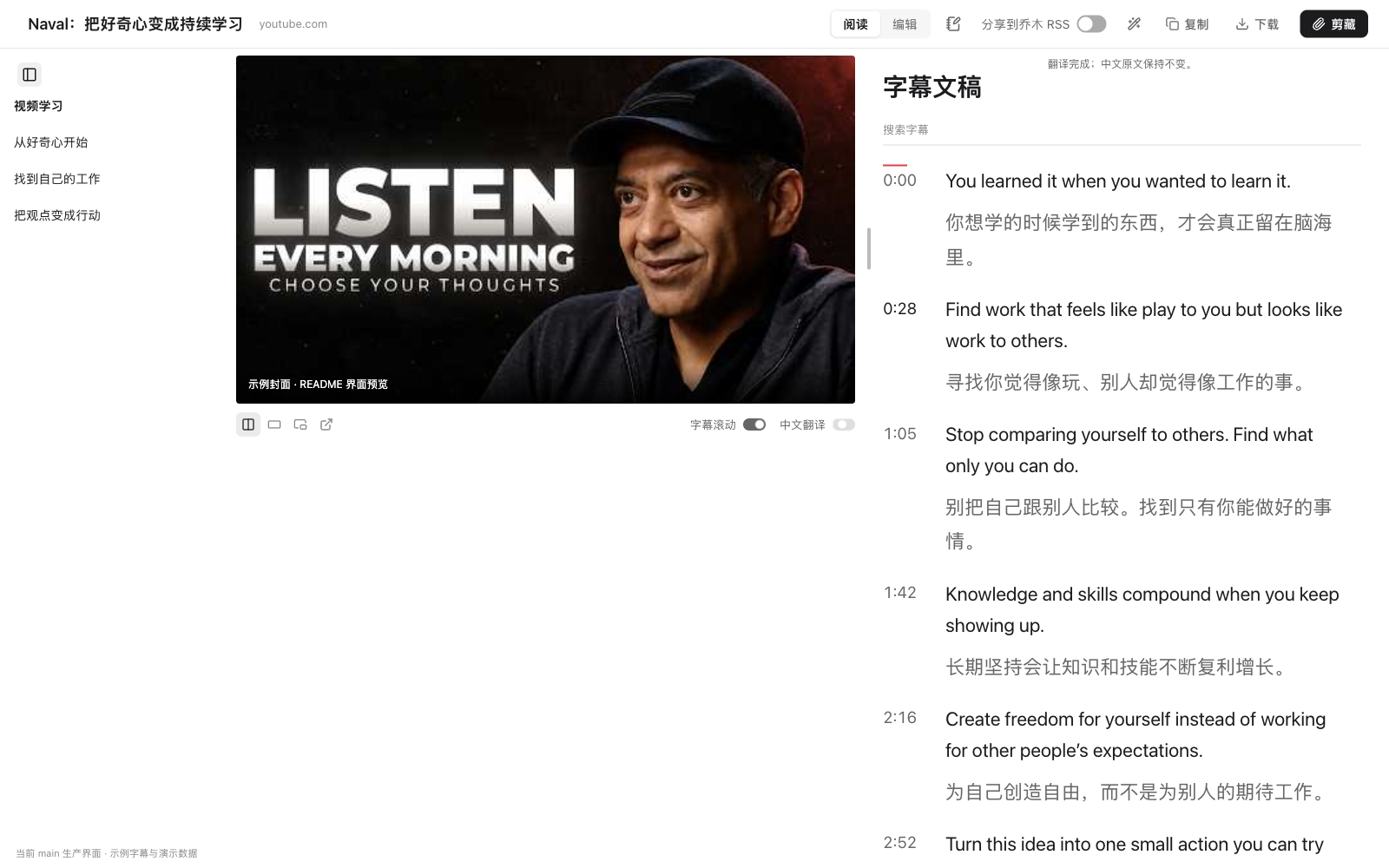
Open the YouTube or B site video page (B site requires the plug-in version 1.11.0 or later), press aaa to evoke the video learning mode: the left player, the right subtitle, the same screen does not cut back and forth.
Open "Chinese Translation", and the subtitle area becomes the original text, Chinese translation, and timestamp comparison; use the search box to search for keywords, and click the timestamp to jump back to the corresponding sentence in the video.
Press N when you see the touch, pop up the learning note card, write "my understanding", and save it with the video source and time point.
The copy and download buttons in the top bar can export the entire subtitle into a manuscript, which is convenient for summarizing afterwards or feeding the AI for secondary finishing.
打开 YouTube 或 B 站视频页(B 站需插件 1.11.0 以上版本),按 aaa 唤起视频学习模式:左边播放器、右边字幕,同一屏不来回切。
打开「中文翻译」,字幕区变成原文、中文译文、时间戳对照;用搜索框搜关键词定位,点时间戳即可跳回视频对应的那句话。
看到有感触的地方按 N,弹出学习笔记小卡片,写下「我的理解」,保存时会带上视频来源与时间点。
顶栏的复制、下载按钮可以把整份字幕导出成文稿,方便事后做摘要或喂给 AI 做二次整理。
Step 5: Cut into Obsidian with one click第五步:一键剪藏进 Obsidian
Prerequisite: Obsidian is installed on the computer; to write the notes of the N key into the "Today's Diary", you also need to install the local assistant provided by the project and enable the "Diary" core plugin in Obsidian.
On the article reading page, press qqq. The plugin will use the default template to write the title, source, and body as Markdown and save it to your Obsidian library (the path and template can be changed in the settings).
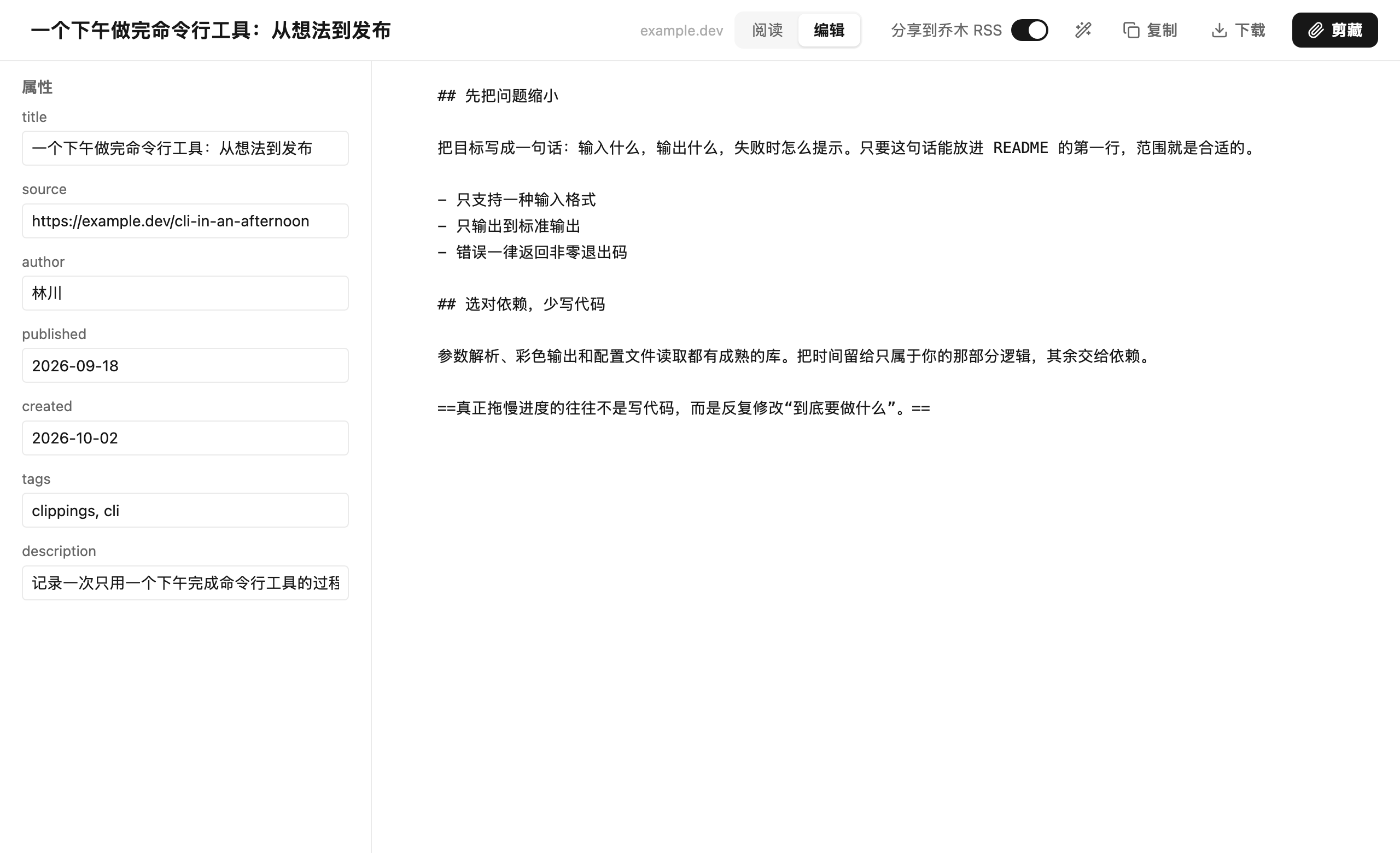
When you need to fine tune, press eee to enter the full page editor: the left side properties (title, label, source), the right side Markdown body side by side, and then save.
In the settings, you can control whether your clips are synchronized and shared to RSS; you don't need to make them public to keep them off.
前置条件:电脑上装好 Obsidian;要让 N 键的笔记写进「今天的日记」,还需要安装项目提供的本地助手,并在 Obsidian 里启用「日记」核心插件。
在文章阅读页按 qqq,插件会用默认模板把标题、来源、正文写成 Markdown 并存入你的 Obsidian 库(路径与模板可在设置里改)。
需要细调时按 eee 进入整页编辑器:左侧属性(标题、标签、来源)、右侧 Markdown 正文并排,改完再保存。
在设置里可以控制是否把剪藏内容同步分享到 RSS;不需要公开就保持关闭。
Shortcut key quick lookup快捷键速查
aaa: enter reading page/video learning mode (note to double tap in non-input box position).
N: Open the learning notes card, write “I understand” and append it to today's Obsidian diary.
qqq: Clip the current page with one click of the default template.
eee: Go to the full page Markdown editor to organize properties and body.
Esc: Return to the original webpage from the Reading page or Learning mode.
aaa:进入阅读页 / 视频学习模式(注意要在非输入框位置连按)。
N:打开学习笔记小卡片,写「我的理解」并追加到今天的 Obsidian 日记。
qqq:用默认模板一键剪藏当前页面。
eee:进入整页 Markdown 编辑器,整理属性与正文。
Esc:从阅读页或学习模式返回原网页。
Use reminder使用提醒
The accompanying resources for this tutorial are tree cutting v1.14.4 Chrome expansion package, see the "AI Plugin" section of this site. AI Q&A and subtitle translation requires your own model API Key, at your own expense. Note Writing Obsidian relies on the local assistant, and the clipping process is still working when it is not installed. This article compiles self-public information, and the resources are only for learning and communication.
本教程配套资源为乔木剪藏 v1.14.4 Chrome 扩展包,见本站「AI插件」栏目。AI 问答与字幕翻译需自备模型 API Key,费用自理。笔记写入 Obsidian 依赖本地助手,未安装时剪藏流程仍可正常使用。本文整理自公开资料,资源仅供学习交流。
本篇为图文教程,直接按步骤操作即可,无需下载文件。
阅读与点赞数据保存在你的浏览器本地,欢迎留下你的想法。
 今日正能量学一点,用一点;今天种下的种子,会长成明天的能力。去免费下载专区 →广告
评论 文明发言,让讨论更有价值